A fast, Finder-inspired file manager for Windows

A file manager that gets out of your way.

Native speed, a Mac-Finder sensibility, and four window modes that fit how you actually work.

File Shell runs entirely on your PC, talks to no servers of its own, and shows no ads. Tabbed, multi-window, and themed to match Windows — light or dark, down to the title bar.

Windows 10 (build 19041) / 11  ·  x64 & ARM64

Get File Shell

Two ways to install — both the same full app

Buy it once on the Microsoft Store, or download the identical app for free. No accounts, no nag screens, no missing features.

Direct download

Free

The same full app, installed per-user — no admin rights, no .NET runtime needed.

  • Identical features — nothing held back
  • Per-user install, self-contained
  • Updates handled by you
Download FileShell-Setup-1.0.0.exe
The direct download is unsigned, so Windows SmartScreen shows an “unknown publisher” prompt the first time. Click More info, then Run anyway.
File
FileShell-Setup-1.0.0.exe · 133.5 MB
Requires
Windows 10 2004+ / Windows 11 · x64
SHA-256
REPLACE WITH RELEASE HASH

Either way, File Shell is the complete app — local, private, and ad-free. The Store price is a friendly way to support the work, not a paywall.

Window modes

Pick the window that fits the task

Four ways to look at your files — switch whenever the job changes. Everything is tabbed and multi-window.

Commander

Classic dual-pane layout for moving and comparing files side by side. Keyboard-first, fast, and made for getting work done.

Finder

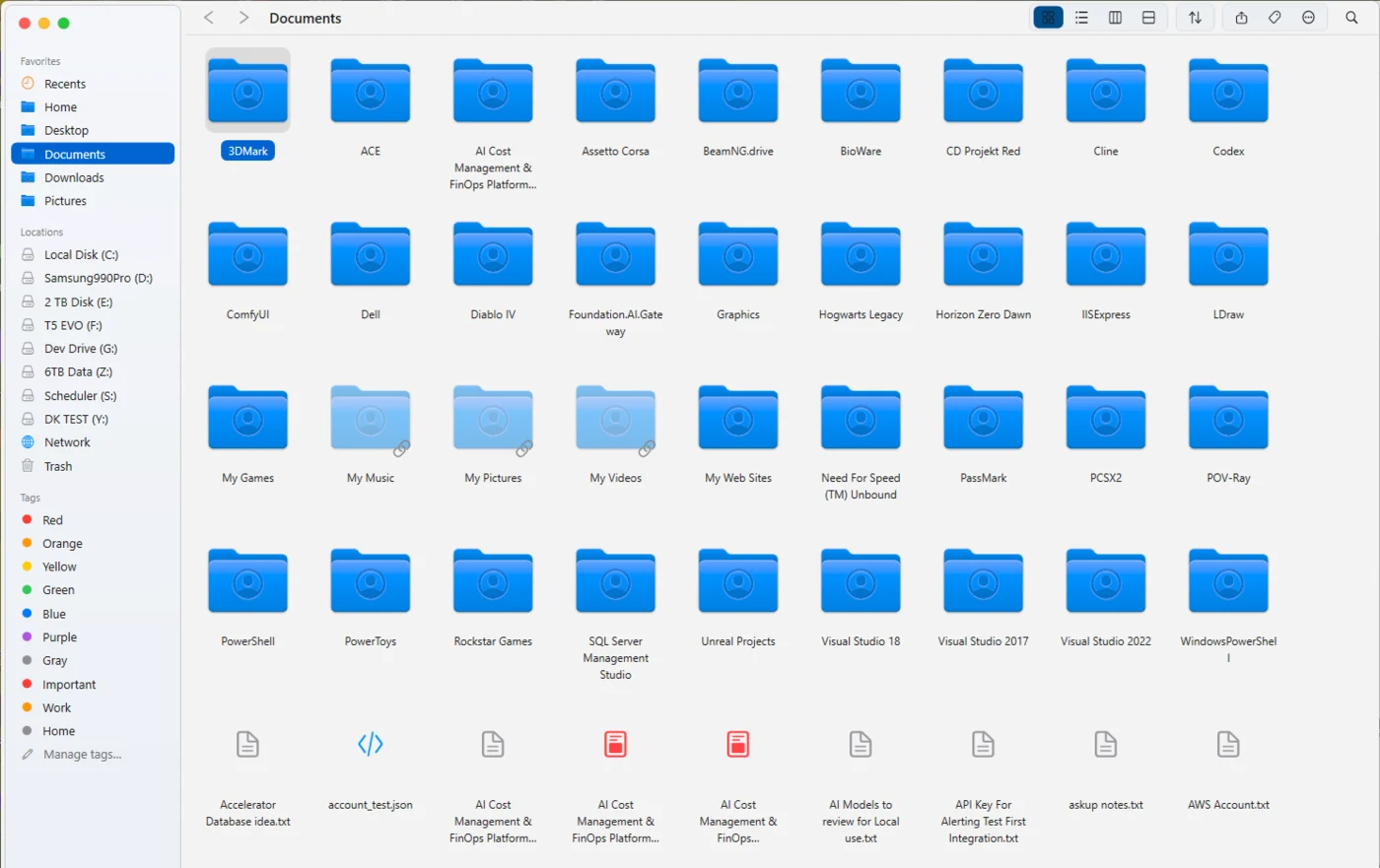
A Mac-style single-pane browser with a sidebar, icon & column views, tags, and Quick Look — clean and familiar.

Explorer

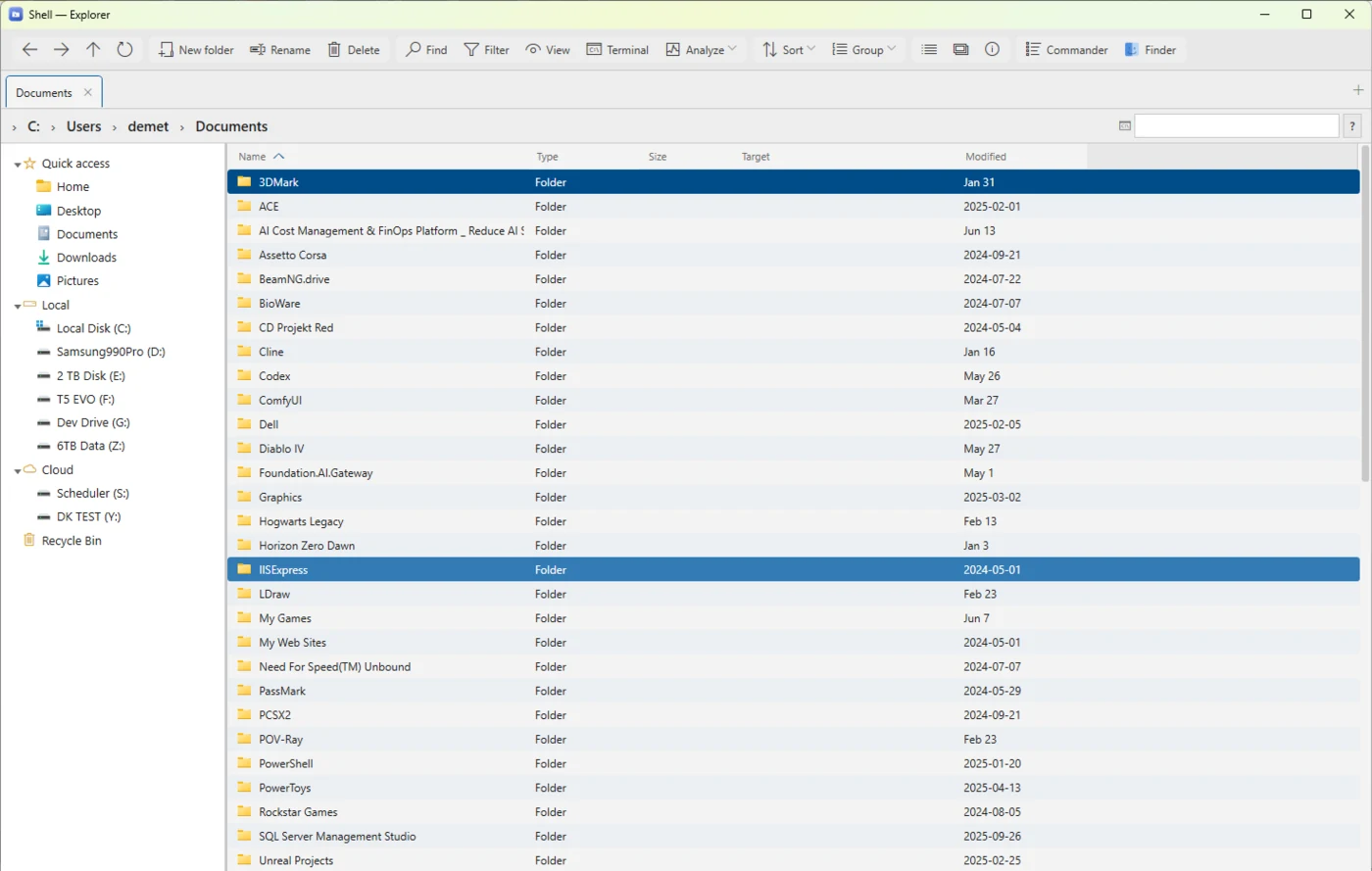
The familiar tree-plus-list layout for drilling down through folders exactly the way you already expect.

Console

A built-in terminal window, right where you’re working — so you never leave to run a command.

A tray icon and a global hotkey spawn a fresh window instantly, and the app follows the Windows dark/light theme — title-bar chrome included.
See it in action

Real windows, real work

Actual screenshots — the same app, three ways to look at your files.
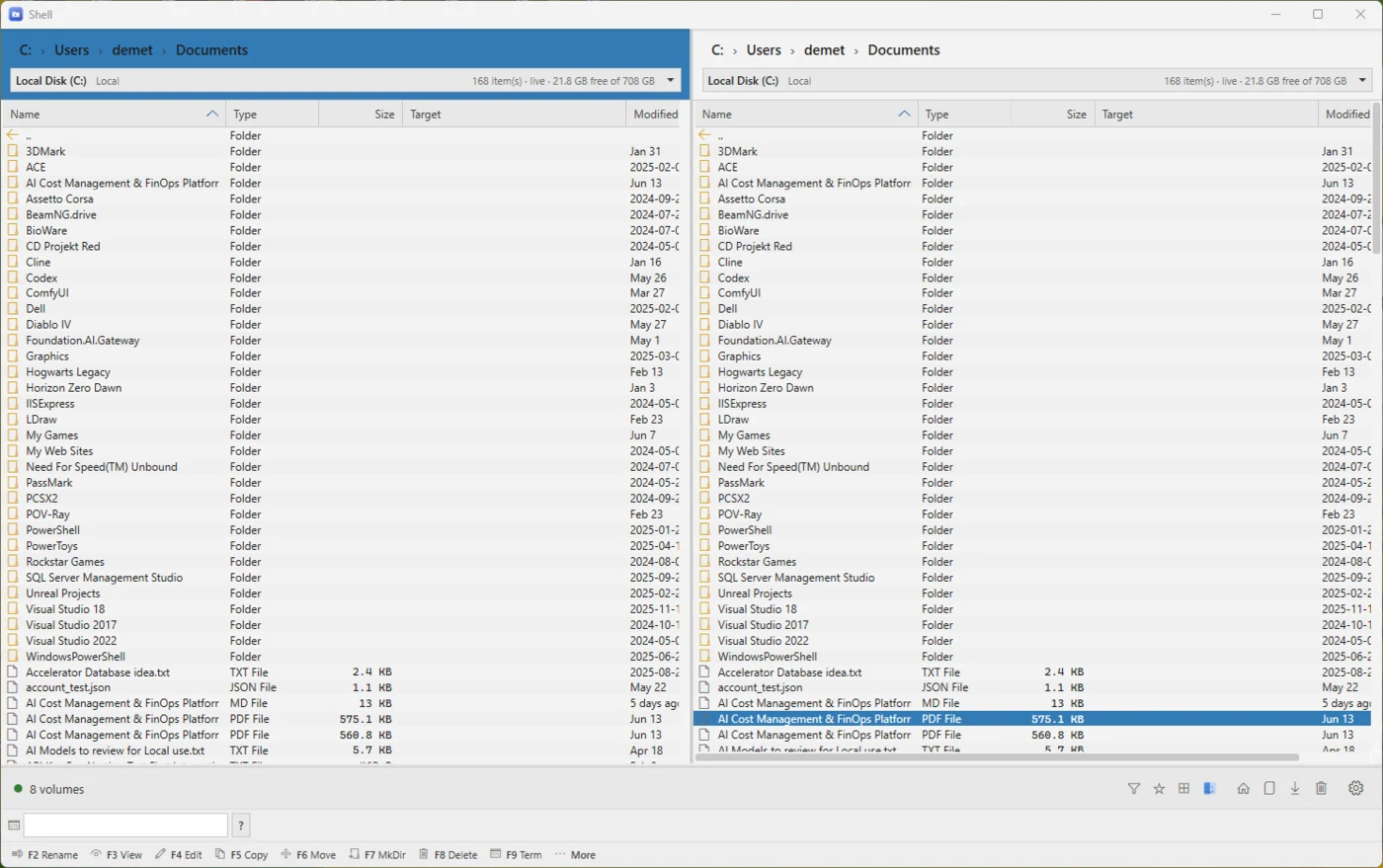
File Shell in Commander mode: a dual-pane window showing two folders side by side with a file selected, a filter box and quick-access icons in the footer.
Commander — dual-pane, keyboard-first copying and comparing.
File Shell in Finder mode: a Mac-style window with a sidebar of favorites, drives, and colored tags, showing an icon grid of folders.
Finder — a Mac-style browser with a sidebar, tags, and Quick Look.
File Shell in Explorer mode: a familiar tree-plus-list layout with a folder tree on the left and a detailed file list with columns.
Explorer — the familiar tree-plus-list layout, with a built-in terminal.
Tag, preview & inspect

See into your files without opening them

Preview, tag, and inspect in place — File Shell brings the details to you, and your tags travel with the files themselves.

  • Tags that travelWritten into NTFS Alternate Data Streams (sidecar fallback) — your tags ride with the files, not a hidden database.
  • Preview pane & Quick LookPDFs (rendered with PDFium), images, Markdown, and text — plus OCR on images via the on-device Windows OCR engine.
  • Git status & diffAn inline Git status column (M/A/D/?) with a built-in diff window, right beside your files.
  • Plus the essentialsFile hashing, file & image metadata, thumbnails, favorites, watched folders, and a copy/move queue you can watch and manage.
Preview
Git status
M Program.cs
A Reader.cs
D old.tmp
? draft.md
Disk map
Tags (ADS)
#review
#final
Mount cloud storage as a drive

Your buckets and servers, as ordinary drives

Mount S3-compatible buckets, WebDAV servers, and Nextcloud (via WebDAV) as ordinary Windows drives. Connections go only to the servers you configure yourself.

  • S3, WebDAV & NextcloudThey appear as normal Windows drives and behave like any other folder in any window mode.
  • Only your serversFile Shell connects only to the cloud servers you set up — nothing is shared with anyone else.
Mounting drives requires the free, third-party Dokan driver. Because the Store package can’t install kernel drivers, the app offers the download on first use. Dokan is x64 only — ARM64 has no driver, but every other feature works the same. File Shell is a fully working local file manager without it.
media-backupss3://media-backups S:
team-files (WebDAV)https://dav.example.com W:
nextcloud-homehttps://cloud.example.com N:
Reclaim your space

See exactly what’s eating your disk

A disk-space analyzer built right in — no separate WinDirStat or TreeSize to download. Find the biggest folders and files, then jump straight to them and clean up.
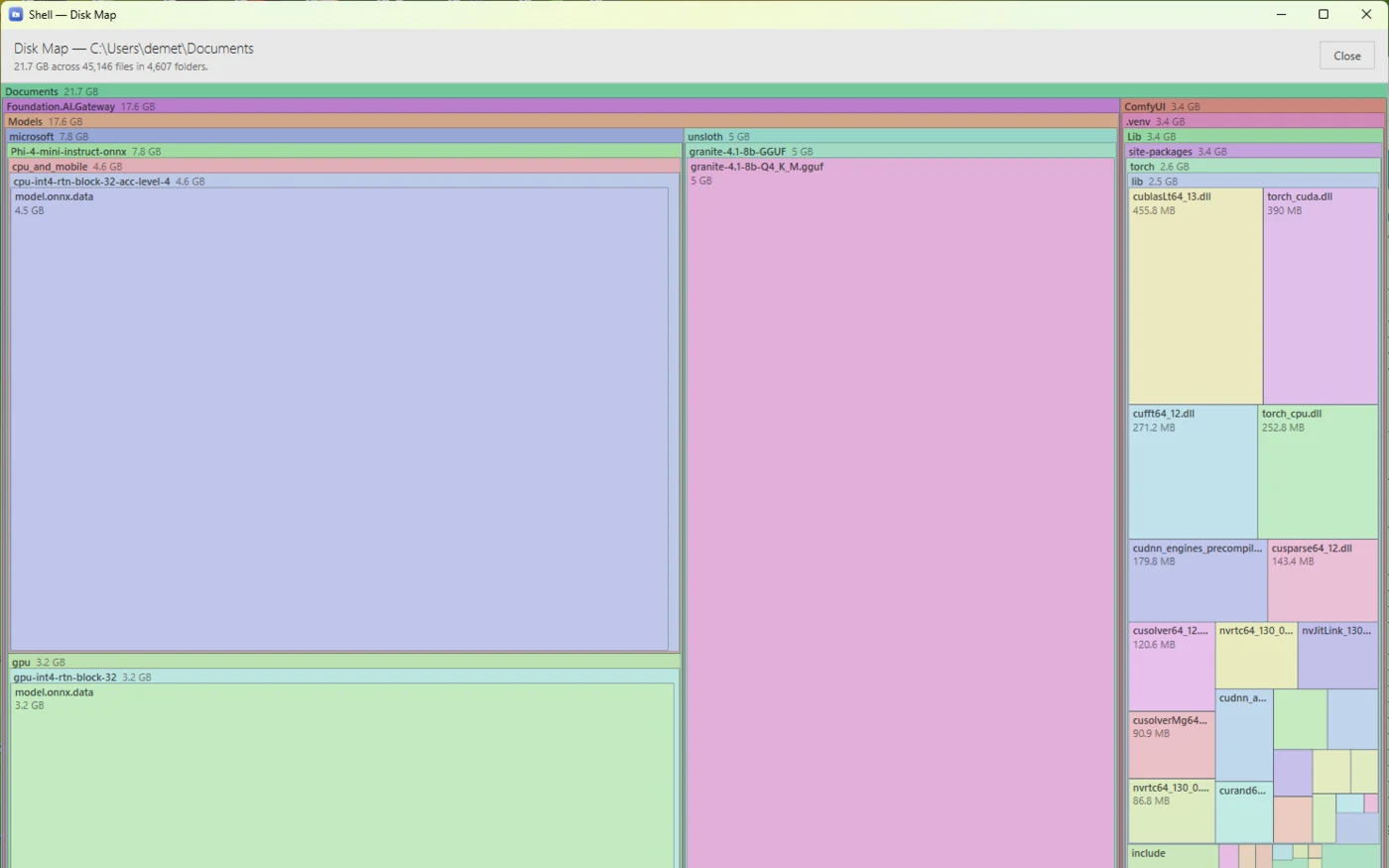
  • Disk MapA squarified treemap where every rectangle is sized to the bytes it holds. Hover for the path and size, click to drill in, and double-click to send your pane straight to that folder.
  • Storage dashboardEvery local drive’s used and free space at a glance, with a live breakdown by type — Documents, Images, Video, Audio, Archives, Code, and Apps.
  • Built for big drivesScans in the background and fills in as it goes, skips junction loops, and quietly handles permission-protected paths.
File Shell's Disk Map: a colorful squarified treemap of a Documents folder — 21.7 GB across 45,146 files — where each rectangle is sized by how much disk that folder or file uses.
Private by design

Your files stay yours

File Shell makes no network connections of its own. There’s nothing to sign in to and nothing to track.

No accounts, no tracking

No sign-in, no telemetry, no analytics, and no ads. Just a file manager that does its job.

No connections of its own

Only the cloud servers you set up yourself — plus the one-time optional search-model download, if you enable it.

Stays on your device

Settings, index, tags, and vectors all live on your PC — and are removed when you uninstall.

network connections File Shell makes on its own.
  • No accounts
  • No sign-in
  • No telemetry
  • No analytics
  • No ads
  • No hidden database